Custom Search
Latest Posts

Monday, July 11, 2011

Create A Glittering Gold Party Text Effect

This tutorial explains how to use Photoshop layer styles, filters, and brushes to create an awesome sparkly text effect.

Step 1

Create a new document that is 1350 x 1000 px. Set the Foreground color to #525252, and the Background color to #0d0d0d. Create a Radial Gradient from the center of the document to one of it corners making sure that you selected Foreground to Background gradient preset.

Glittering Gold Party Text  Effect

Go to Filter > Noise > Add Noise. Set the Amount to 5, the Distribution to Uniform, and check the Monochromatic box.

Glittering Gold Party Text  Effect

Step 2

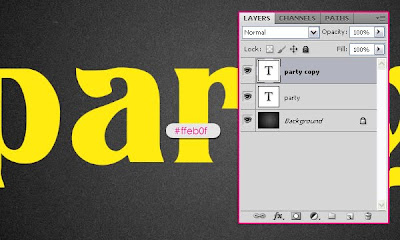
Create the text using the color #ffeb0f. The font used is Titania and the size is 377px. Duplicate the text layer so you have two copies.

Glittering Gold Party Text  Effect

Double click on the copy text layer (the one on the top) to apply the following styles:

- Drop Shadow: Change the color to #383838, and the Size to 10.

Glittering Gold Party Text  Effect

- Inner Shadow: Change the color to #625841, the Size to 13, and the Contour to Half Round.

Glittering Gold Party Text  Effect

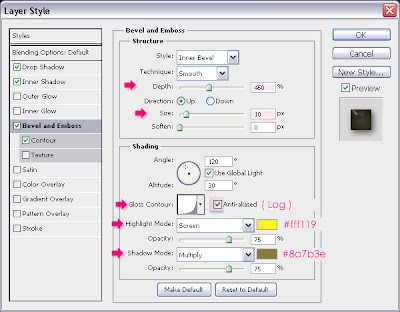
- Bevel and Emboss: Change the Depth to 450, the Size to 10, the Gloss Contour to Log, and check the Anti-aliased box. Also, change the Highlight Mode color to #fff119, and the Shadow Mode color to #8a7b3e.

Glittering Gold Party Text  Effect

- Contour: Just check the Anti-aliased box

Glittering Gold Party Text  Effect

This is what the text should look like:

Glittering Gold Party Text  Effect

Step 3

Press the Ctrl/Command key, and while still pressing, click on the text layer thumbnail (icon) to create a selection.

Glittering Gold Party Text  Effect

Set the Foreground color to #7d6905 and the Background color to #d3c614. Create a new layer on top of all layers and call it “texture”. Fill the selection with the Foreground color, and press Ctrl/Command + D to get rid of the selection.

Glittering Gold Party Text  Effect

Step 4

Now, we are going to use a couple of filters to create the sparkly texture. Start by going to Filter > Sketch > Notepaper. Change the Image Balance to 25, the Graininess to 10, and the Relief to 11.

Glittering Gold Party Text  Effect

Go to Filter > Texture > Stained Glass. Change the Cell Size to 2, the Border Thickness to 4, and the Light Intensity to 1. The Light Intensity property adds brightness to the center of the texture, so you can increase the value if you want more brightness in the center.

Glittering Gold Party Text  Effect

Finally, go to Filter > Stylize > Glowing Edges. Change the Egde Width to 2, the Edge Brightness to 10, and the Smoothness to 5.

Glittering Gold Party Text  Effect

Change the “texture” layer’s Blend Mode to Overlay.

Glittering Gold Party Text  Effect

That’s it for the text effect. Next, we’re going to add some sparkles using the Brush tool.
Step 5

Open the Brush panel (Window > Brush), and choose a hard round brush. Change the size to 10px, and set the Spacing to something around 322%.

Glittering Gold Party Text  Effect

Under Shape Dynamics, change the Size Jitter to 100%, the Roundness Jitter to 62%, and the Minimum Roundness to 25%.

Glittering Gold Party Text  Effect

Under Scattering, Change the Scatter value to 431%.

Glittering Gold Party Text  Effect

Finally, under Color Dynamics, change the Foreground/Background Jitter to 100%, and the Brightness Jitter to 50%. This will give the sparkles different brightness and color values.

Glittering Gold Party Text  Effect

Step 6

Right click on the text layer, and choose Create Work Path.

Glittering Gold Party Text  Effect

Make the color #d3c614 the Foreground color, and change the Background color to #ffff08. Create a new layer on top of all layers and call it “sparkles”, and grab the Direct Selection Tool.

Glittering Gold Party Text  Effect

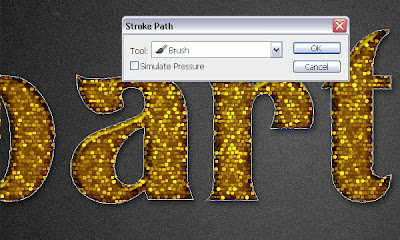
Right click on the path, and choose Stroke Path.

Glittering Gold Party Text  Effect

Choose Brush from the Tool drop down menu, and make sure the Simulate Pressure box is un-checked.

Glittering Gold Party Text  Effect

This will stroke the path with the brush you’ve just created.

Glittering Gold Party Text  Effect

Change the “sparkles” layer’s Blend Mode to Linear Light.

Glittering Gold Party Text  Effect

Step 7

The last thing we’re going to do is add more shadow to the text, so that it blends more with the background, and has more depth. To do that, Double click on the original (bottom) text layer, un-check the Use Global Light box (as we want to change the direction of the shadow), and change the Angle to -20. Also, change the Distance to 8, and the Size to 10.

Glittering Gold Party Text  Effect

Change the Fill value of the original text layer to 0, so that only the shadow is visible.

Glittering Gold Party Text  Effect

Final Image

Glittering Gold Party Text  Effect


Source
read more...

Tuesday, September 7, 2010

How To Create Sunny White Clouds In Photoshop

Create the Sky
Lets start by creating a new document which is 1024 x 768 pixels at a resolution of 300 pixels/inch, make sure Color Mode is set to RGB
.

Create the Sky
Set your Foreground Color to #a4cccc and Background Color to #5ebbd5. Get the Gradient Tool, pick Foreground to Background gradient and fill the Background with a Linear gradient from bottom to top
.

Apply Clouds Filter
Create a new layer and name it "Clouds". Hit D on the keyboard to set colors to Black and White. Go to Filter > Render > Clouds. Set Layer Blend Mode to Screen.

Add Layer Mask
Click the Add Layer Mask button on the Layers Panel. Go to Filter > Render > Clouds to apply a clouds filter to the layer mask
.

Apply Curves to Layer
At the moment the Layer Mask is selected in the Layers Panel. Go back to "Clouds" layer by clicking the Layer Thumbnail. Hit Command+M to bring up the Curves dialog
and tweak the curve as in the below image.

Apply Levels to Mask
Now select the "Clouds" Layer Mask and hit Command+L to open the Levels dialog and increase the contrast as shown in the below image.

Some Blur
Go to Filter > Blur > Radial Blur while the Layer Mask is still selected. Use these settings: Amount => 50, Blur Method => Zoom, Quality => Best. You can also change the position of the Blur Center.
.

Let the Sun Shine
Now let’s put some sunshine. Create a new layer on top and fill it with Black
. Go to Filter > Render > Lens Flare, set Brightness to 175, pick 50-300mm Zoon lens, place the Flare Center at the top left of the canvas and hit OK.

Congratulations
Set Layer Blend Mode to Screen. This is my final image.
Because we’re using clouds filter each time you repeat this tutorial you’ll get different results, the Curves and also the Levels adjustments will also change the final image. Hope you liked this tutorial and had fun making it.


Source
read more...

Monday, September 6, 2010

How to Create Newspaper Layout In Photoshop

This tutorial will show you how to create an image that will look like a scanned newspaper page.


Newspaper Layout In Photoshop


Step 1. Create a new document, size 630x900 and fill it with it a light, warm gray (color code #e4e4e4).

Step 2. To make the final result make more realistic, it’s necessary to mimic the way you can see the writing on the back page on a real newspaper.

To achieve this effect, open an image of a newspaper page you can find on the Internet (I chose this one), go to Image-> Rotate Canvas -> Flip Canvas Horizontal and then copy/paste it over the new document you just created. Set its opacity to 5%, so that the writing is only a bit visible.

Newspaper Layout In Photoshop

Step 3. Newspaper articles often contain pictures, so I opened this one and resized it to 35%, and I placed it on the left like this:

Newspaper Layout In Photoshop

Step 4. To convert the image to black and white, the best method is to go to Image -> Adjustments -> Channel Mixer… tick Monochrome and leave all the other settings as default.

Newspaper Layout In Photoshop

Step 5. In order to create the headlines, I used Century Old Style Std, Italic, size 40pt and 24pt respectively. You may use any other font that is very legible and simple.

Newspaper Layout In Photoshop

Step 6. To create the subtitles, I used Century Old Style Std, Bold, size 18pt. I left some space between them and the picture, and the headlines, in order to achieve an elegant, uncluttered look.


Don’t worry if the text you’ve done until now is not properly aligned. You can easily fix that later.

Step 7. Now it’s time to create the content of the news article. You need to create a text box: using the Type Tool, click on the desired starting point of the text box and drag down to create a rectangle.
Newspaper Layout In Photoshop

Though it’s not visible in the screenshot above, the text box doesn’t go all the way to the bottom of the page. I’ve left a blank edge on the bottom of the page, because we’re later going to add the date and day of the week there, just like on genuine newspapers.

Step 8. Paste some text of your choice into the text box you’ve created (my source was Wikipedia). The font I used is Century Old Style Std, Regular, 14pt.

Newspaper Layout In Photoshop

Notice that I’ve used a Sans Serif font. Because of their high legibility, most magazines and newspaper articles use Sans Serif fonts for the main body of text.

Step 9. Create a second text box as shown at step 7 and paste some text, using the font at step 8.

Newspaper Layout In Photoshop

Step 10. The final step is to create a text box and add some text in the lower part of the page. I used the font Century Old Style Std, Regular, 12pt.

Newspaper Layout In Photoshop

In order to verify and align the way the text and pictures fit on the page, go to View -> Show -> Grid. To change the position of a certain element, use the left and right arrow keys, or the Move Tool.


The final result:


Newspaper Layout In Photoshop

read more...